

Guide to consulting invoices in the Tax Drawer
How to view invoices sent and received through the Exchange System using Openapi APIs.

Consulting electronic invoices through the Tax Drawer of the Italian Revenue Agency allows you to view, download, and verify all invoices correctly issued and received through the Exchange System associated with your VAT number or tax code.
Please note that electronic invoice files correctly transmitted to the Exchange System (SdI) remain available for consultation in the reserved area of the Italian Revenue Agency website until December 31 of the second year following their receipt by the SdI. After that, only the so-called “invoice data” will be available for consultation until December 31 of the eighth year following the submission of the relevant tax return.
1. Access the Tax Drawer
To access the Tax Drawer section more quickly on the Italian Revenue Agency portal, we recommend accessing it directly from Invoices and receipts rather than from the homepage of the Revenue Agency portal.
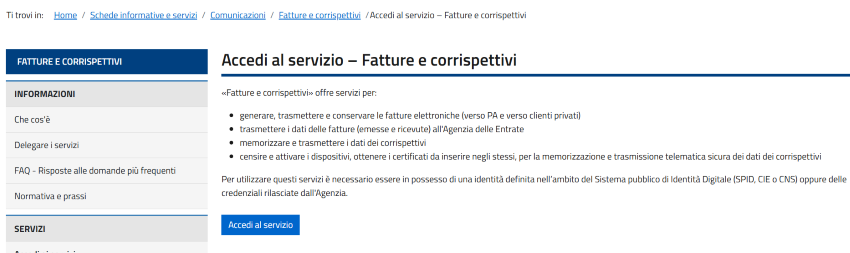
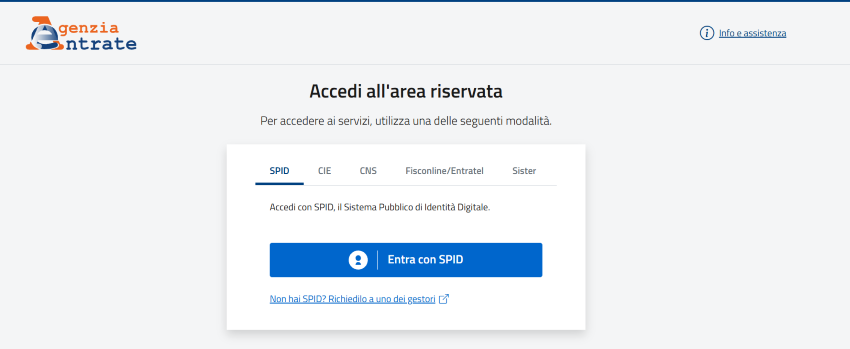
To access the service, you must have one of the following credentials:
- SPID
- CIE (Electronic Identity Card)
- CNS (National Services Card)
- Fisconline / Entratel credentials
2. Configure the Working Profile
Once logged in, the user must choose the profile they want to operate with
- if you want to access services related to your own VAT number, select “Myself”
- if you have been authorized to operate on behalf of the company you work for, select “Delegate”
- if you have received a direct delegation as an intermediary from your VAT-registered client, select “Direct delegation”
- if you need to operate as guardian of the VAT holder (for example, if they are legally incapacitated), select “Guardian”
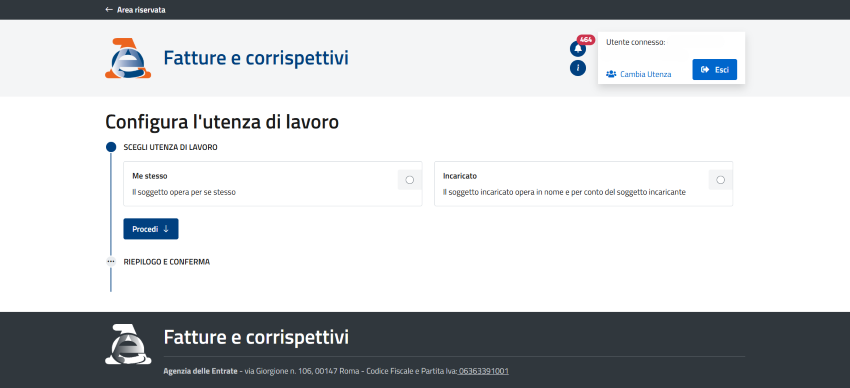
Once the profile is selected, you can choose the VAT number you intend to operate on. Select the user profile associated with the company whose invoices you want to consult.
Once the working profile is configured, you can proceed to the consultation of invoices and receipts by clicking the Proceed button.
3. Select Electronic Invoices and Other VAT Data
Once logged into the Invoices and Receipts portal, several sections will be available. In the “Consultation” section, click on "Electronic invoices and other VAT data".
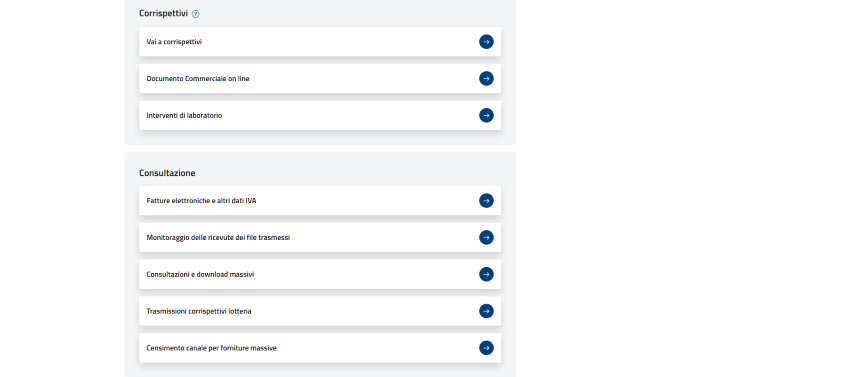
4. Consultation of Electronic Invoices (Issued or Received)
Once inside the Consultation section, you can view issued or received invoices by clicking the corresponding link.
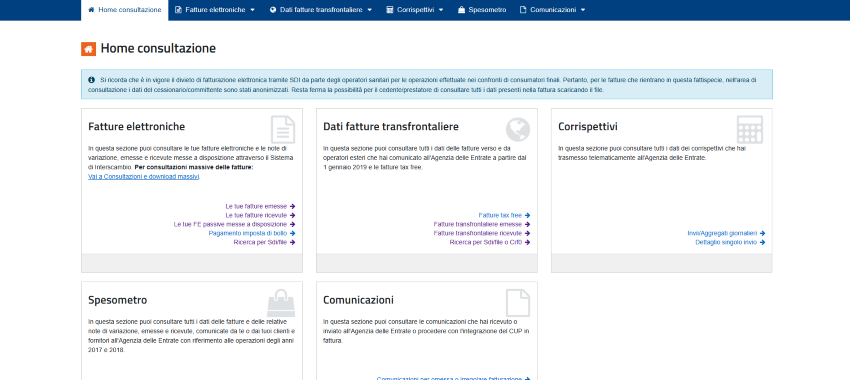
Once one of the two links is selected, you will see the list of available invoices (issued or received) made available through the exchange system for the last quarter or for the selected period using the appropriate filter.
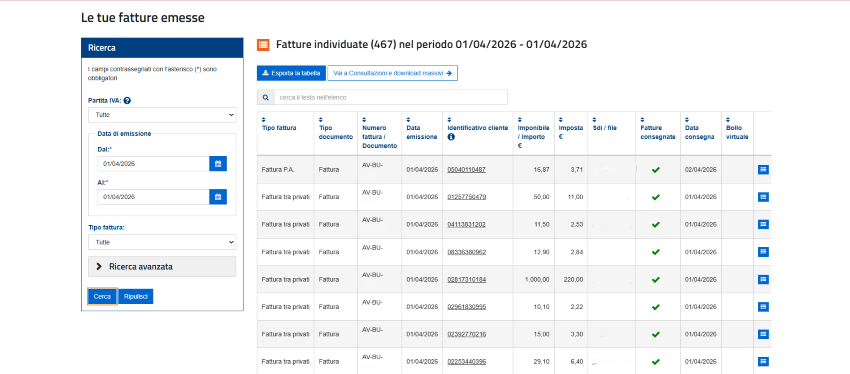
The screen allows you to view, for each row in the table, the main summary data of the document, including invoice number and date, tax identifier of the supplier or customer, taxable amount, VAT, unique identifier assigned by the Exchange System (SdI) to the invoice XML file, and any applicable stamp duty. By hovering over the subject identifier, the corresponding company name is also displayed.
By clicking the magnifying glass icon in the last column, the VAT subject can access detailed invoice data or download the related XML file.
It is possible to filter the list using parameters such as VAT type, issue date, and invoice type.
In addition, through the Advanced Search functionality available in the box, it is possible to select a specific VAT number or tax code or filter by invoice type or status.

RELATED ARTICLES

Carbon free energy for Our Cloud  Low CO2





© 2024 Openapi SpA, a single-member company, under the direction and control of Open Holding Srl.
Viale Filippo Tommaso Marinetti 221 - 00143 Rome - Business Register: 1378273, Share Capital: €50,000.00, VAT Number: IT12485671007, Recipient Code: 'USAL8PV' - Certified Email: 
Openapi is certified in: Quality System **UNI EN ISO 9001:2015** - Data Quality **ISO 25012:2014** - Security Management **ISO/IEC 27001:2022** - Geneder Equality According UNI PdR 125:2022
All prices are net of any VAT, stamp duty, registration fees, or other taxes that may be due. All logos listed on the portal are copyrighted and owned by their respective owners.